

Your iPhone goes anywhere. You stay at your desk.
Stop walking the block to test a geofence. Telepin sets where your iPhone thinks it is, from your Windows PC, so you can check arrivals and route tracking, or see what your apps show in another city, without going outside.
Free early access for Windows 10 or 11. Needs Apple’s Devices app, iOS 17.4 or later, USB and Developer Mode. Tested so far against a simulated iPhone, not yet a physical one.
Next · Union Square
810 m of 4.05 km · 39 min left
Dropped pin
Try it: click the map and see where you land.
Demo of a Telepin route. No iPhone is connected. Map: Esri, HERE, Garmin, USGS, © OpenStreetMap contributors.
- Test the same build you ship.No test code to add or strip out.
- Keep working while the test runs.Your iPhone makes the trip while you write code.
- Start a long route and go to lunch.Come back to the finished run, with your phone still where the test left it.
Test the trips your users take, without taking them.


The hassle you get to skip
- Your iPhone stays on normal iOS.No jailbreak, and Developer Mode can go back off when you finish.
- No app to delete from your phone.You work from Windows, with no Mac or Xcode to set up.
- Download it and start testing.No account to create and no card to enter.
When a test fails, run it again exactly.
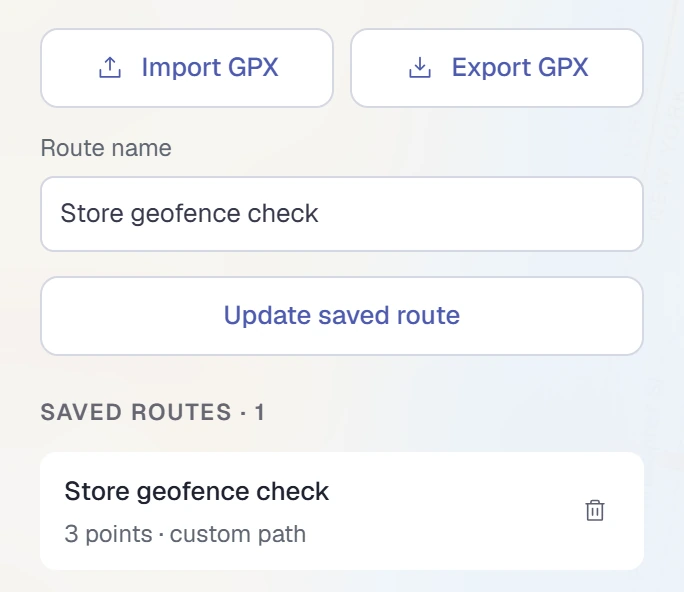
- Reproduce the bug reportImport the GPX track from the report and replay that exact path. Share yours so a teammate can replay the same path.
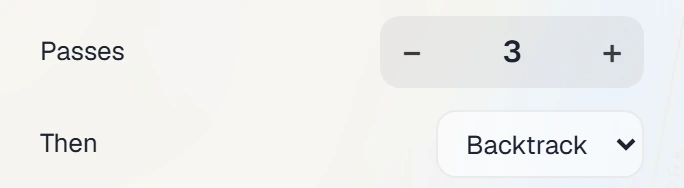
- Catch what fails on lap threeRepeat a route, or run it out and back, without touching it between passes.
- Never rebuild a test tripClose the app tonight. Your routes and places are waiting tomorrow, saved on your own computer.
Get your real location back in one click.
One click and your phone is home again, so you don’t leave it stuck in another city.
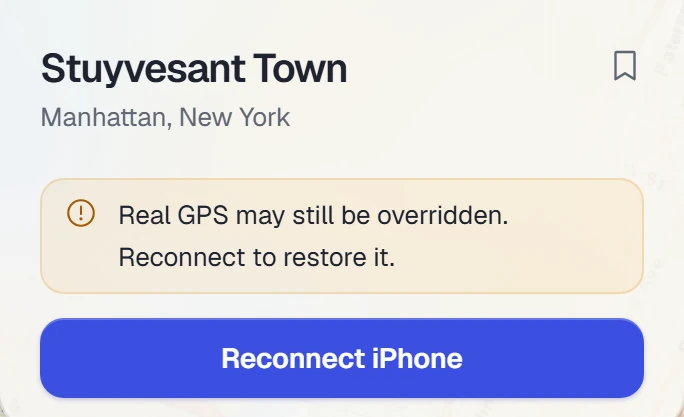
If the connection drops first, Telepin tells you your phone may still show the wrong place, and shows you the fix.
Stuck on the wrong location? Here is the fix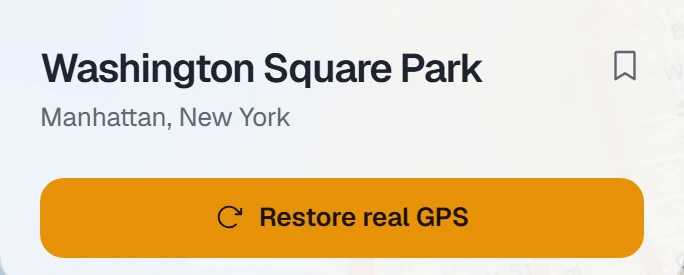
Four things to check before your first test.
- Confirm it on your iPhone with one look at Maps
- So far we have tested against a simulated iPhone. USB, Wi-Fi and restoring are not yet checked on a physical one, including iOS 26.7.
- Check the installer before you run it
- The source and checksum are public. It is unsigned, so Windows may warn you and Smart App Control may block it. What to do.
- On a Mac? You can build it yourself from source
- There is no installer yet, and that build is not tested.
- Find out early if your app objects
- Some apps can detect a simulated location or refuse it, so try yours before a surprise lands mid-test.
Run your next location test from your chair.
Get Telepin for WindowsCopy link for my computerCheck your location features at your desk, before a user meets them on the street. Free, with no account.