
Set up Telepin once.
The first connection takes longer. After that, you plug in and go.
Let your PC talk to your iPhone
Install Telepin, then install Apple’s Devices app from the Microsoft Store. You only do this once.
Give your iPhone the go-ahead
Plug in your iPhone and unlock it. Accept Trust This Computer, then turn on Developer Mode in Settings, Privacy & Security. The iPhone restarts, and you confirm the change when it comes back.
Pick your phone and you’re in
Choose Connect iPhone, pick your phone and select Connect. Keep it unlocked during the first connection.
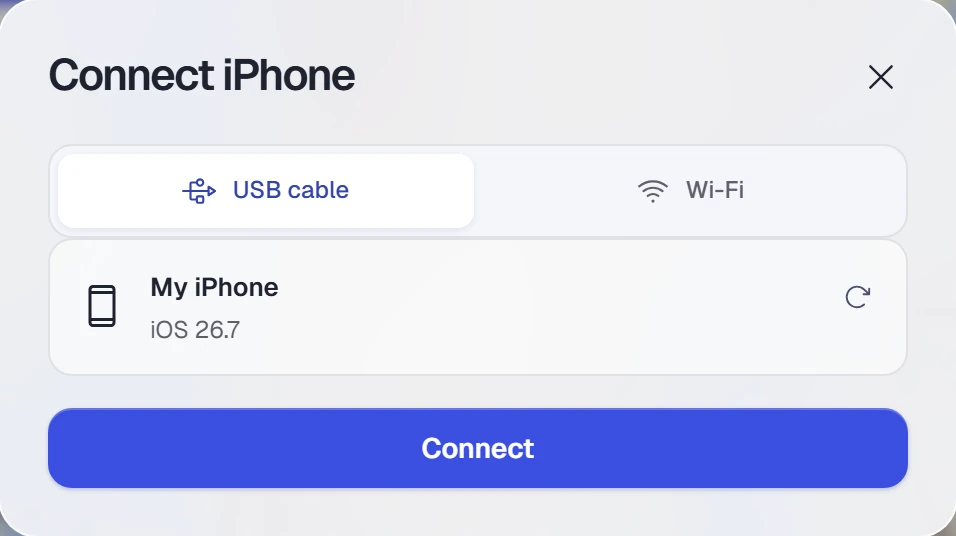
Shown with a simulated iPhone.
See it work, then come home
Select Set location and check Maps on the iPhone. Then select Restore real GPS and check Maps again.

Optional: lose the cable
Work across the room instead of tied to your PC. Wi-Fi is not yet checked on a physical iPhone, so try it before you rely on it.
- Connect by USB, stop any movement and select Restore real GPS.
- Choose Set up Wi-Fi, then disconnect and unplug.
- Select Wi-Fi and refresh on the same local network.