
Fake GPS on iPhone: How to Spoof Your GPS Location on iOS 17 and Later
You can fake GPS on an iPhone, but not with an app from the App Store and not with a VPN. On iOS 17.4 or later, the method that works uses a computer, a USB cable and Developer Mode. The computer tells the iPhone which GPS location to report. Every app on the phone then sees the new location, and you can switch back to your real location in one click.
This guide explains why the easy options fail, how the computer method works, and how to set a fake location on iPhone with Telepin.
Can you fake GPS on an iPhone?
Yes. But iOS is strict about where GPS data comes from. There is no mock location switch in iPhone Settings. To change your iPhone location, the new GPS location has to come from outside the phone, through a developer connection.
That leaves three things people try:
| Method | Changes the GPS that apps see? | What it really changes |
|---|---|---|
| Fake GPS app from the App Store | No | Only what that one app shows |
| VPN | No | Your IP address |
| Desktop location spoofer with Developer Mode (iOS 17.4 or later) | Yes | The iPhone GPS location for all apps |
Why App Store fake GPS apps cannot change your iPhone location
Search the App Store for "fake GPS" and you will find many apps with names like "fake GPS location spoofer". They cannot do what the name suggests. iOS does not let one app change the GPS location that other apps read. Each app runs in its own space, and the phone's location comes from iOS itself.
So a fake GPS app can show a map, let you pick a point, or make a picture or link with a place on it. It cannot move the blue dot in Apple Maps or Google Maps. It cannot change your current location in a game like Pokémon GO. Before you pay for one, read the app's description and its App Privacy section with care, and check what it says it really does.
Why a VPN is not GPS
A VPN changes your IP address. That is the country that websites and streaming services see. It does not change the iPhone GPS. Apple Maps, Find My, weather and games still read your real location from the GPS.
Use a VPN if you want to protect your privacy on public Wi-Fi or see websites as another country sees them. Do not use a VPN if you want to fake your location in an app that reads GPS data. It is a different tool for a different job.
What about changing your Apple ID region?
Changing your App Store country does not change GPS either. On the iPhone, go to Settings > [your name] > Media & Purchases > View Account > Country/Region. This changes the store you shop in. Your GPS location stays the same.
What about Location Services?
Settings > Privacy & Security > Location Services lets you turn Location Services on or off, or turn it off for a specific app. That hides your location from an app. It cannot set a fake location.
How GPS spoofing works on iOS 17 and later
Desktop tools change the location of your iPhone through the same developer connection that app developers use to test their apps. Here is the short version:
- You connect the iPhone to a computer with a USB cable.
- You turn on Developer Mode on the iPhone.
- The computer sends a new GPS location to the iPhone.
- iOS reports that location to every app, until you restore it.
There is no jailbreak, and nothing is installed on the iPhone. This is a way to spoof location on iPhone without jailbreaking, and Developer Mode can be turned off again afterwards.
Telepin is a location spoofer of this kind. It needs iOS 17.4 or later. Other paid desktop location changers include Tenorshare iAnyGo, iMyFone AnyTo, iToolab AnyGo, Wondershare Dr.Fone Virtual Location, LocaChange and MocPOGO. For a side by side look, see the best iPhone location changers.
How to fake GPS on iPhone with Telepin
Telepin is a Windows app that sets the GPS location of an iPhone connected to the PC. It costs $5.99 a month. You need:
- A PC with Windows 10 or 11 (64-bit). There is no Mac app yet.
- An iPhone on iOS 17.4 or later.
- A USB cable for the first connection.
- Apple's free Apple Devices app on the PC.
Steps:
- Download Telepin and install it. The installer is unsigned, so Windows may warn about an unknown publisher.
- Install the Apple Devices app on the PC.
- Connect the iPhone to the PC with the USB cable.
- On the iPhone, open Settings > Privacy & Security > Developer Mode and turn it on.
- Open Telepin and connect to the iPhone.
- Click anywhere on the map, search an address, or type coordinates for your new location.
- Press Set iPhone location.
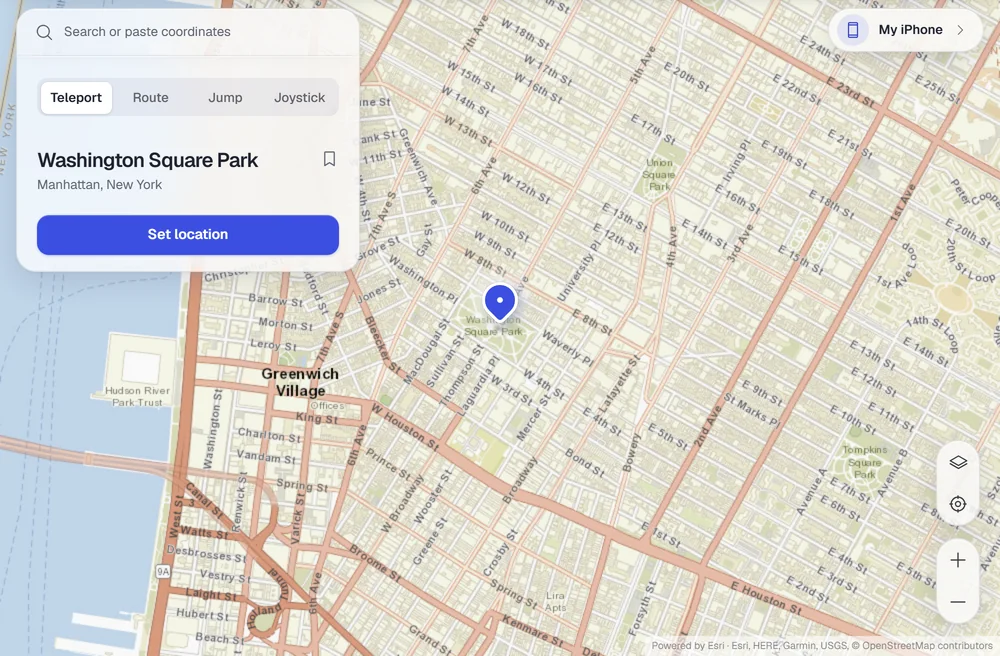
The setup guide has each step in more detail. After the first USB connection, Telepin can also connect over Wi-Fi on the same local network.
Other ways to change the location
Teleport is one way to change your location. Telepin also has:
- Route: two or more stops, in straight lines or along roads for walking, cycling or driving. You set the speed (up to 120 km/h) and the number of passes. GPX import and export work too.
- Jump: visits stops at a set interval.
- Joystick: steer with the on-screen pad or the arrow or WASD keys.
Saved places, recent places and routes stay on the PC.
Honest limits
Telepin is in early access (version 0.5.0). So far it has been tested on a simulated iPhone, not yet on a real one. Some apps can detect or refuse a simulated location. If you play Pokémon GO, know that Niantic's Terms of Service forbid location spoofing. Accounts that spoof can get warnings, temporary suspensions or a permanent ban. Read Pokémon GO spoofing on iPhone before you try.
How to get your real GPS location back
Press Restore real GPS in Telepin. It takes one click, and the iPhone goes back to its real location.
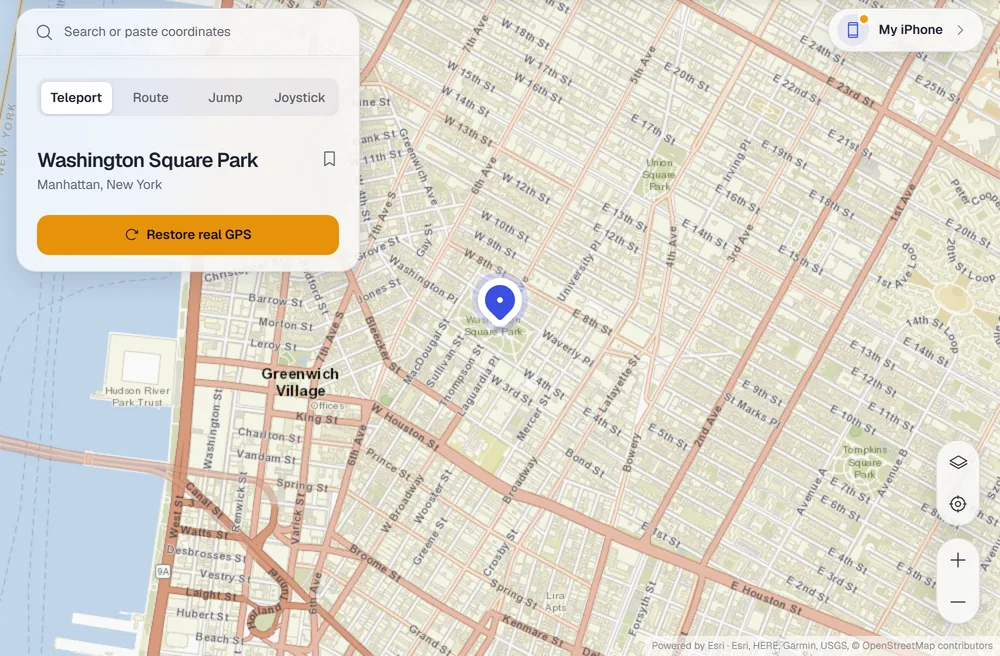
If the cable came out first, reconnect the iPhone and use Reconnect & restore. If that does not work, restart the iPhone. A restart clears the fake GPS location.
When you are done, you can turn Developer Mode off again in Settings > Privacy & Security > Developer Mode.
Use fake GPS for the right reasons
People change the location of an iPhone to test apps, plan a route, or see local content for a new city. We do not help anyone fake a location to deceive family, partners or an employer. That includes location sharing in Find My, Share My Location, Life360 and dating apps. Find My shows the phone's GPS location, and you cannot set a different place for it in Settings.
For other ways to change your location, see how to change location on iPhone and how to spoof location on iPhone.
FAQ
Is there a fake GPS app for iPhone?
There are many apps called fake GPS in the App Store, but none can change the GPS location other apps see. iOS does not allow it. To fake GPS on iPhone, you need a computer and Developer Mode.
Do fake GPS iPhone methods work without a computer?
Not for the GPS that all apps read. A VPN works without a computer, but it only changes your IP address, not your GPS location.
Can fake GPS be detected on iPhone?
Sometimes. Some apps can detect or refuse a simulated location. Telepin cannot promise that an app will accept it.
Is a fake GPS iPhone tool worth it?
It depends on your use. Telepin costs $5.99 a month. Tenorshare iAnyGo's 1 Month License for Windows costs $12.95 a month, so Telepin saves $6.96 a month. See Telepin as an iAnyGo alternative.
Do I need to jailbreak my iPhone?
No. Telepin needs no jailbreak and installs nothing on the iPhone. More answers are in the FAQ.